Notes that made perfect sense during a lecture can become an unreadable deck when every detail lands on a slide. This workflow makes lesson planning easier. It turns rough notes into AI lecture slides and a clear teaching sequence without starting from a blank presentation.
Generative AI tools work best as first-draft partners, not unsupervised authors. You still set the learning goal, verify the facts, and decide what deserves attention in the room.
Key Takeaways
Start with a focused, cleaned source packet and a short teaching brief that defines the audience, lesson length, prior knowledge, and learning outcome.
Separate planning, slide writing, design, and review instead of asking AI to create a complete deck in one step.
Give each slide one clear teaching job, keep the visible copy concise, and move explanations, definitions, and cues into speaker notes.
Choose tools based on source handling, privacy, editing, export, and collaboration needs rather than features alone.
Treat every AI-generated claim, visual, equation, citation, and image attribution as a draft to verify before presenting.
Start with source material AI can trust
Before uploading anything, collect the notes, readings, diagrams, and previous slides for one lesson. A folder of unrelated files produces a disjointed deck. Give the AI a focused source packet instead.
Clean up the material first. Correct obvious transcription errors, label sections, and separate required content from optional examples. If the lesson includes formulas, tables, or annotated diagrams, inspect them after uploading. Optical character recognition can misread symbols, subscripts, and handwritten marks.
Keep a short teaching brief beside the notes. State the audience, lesson length, prior knowledge, and the action learners should complete. For example, “Second-year biology students, 45 minutes, learners can explain the stages of mitosis and identify them in a microscope image.”
Protect privacy before uploading. Remove student names, grades, feedback, disability information, and unpublished research data. Don't upload copyrighted articles, slides, textbook chapters, or images without permission to use them in that service.
A source-grounded workspace such as NotebookLama can keep PDFs, DOCX files, web pages, and text notes together. This makes it easier to request an outline based on your material instead of the model's general knowledge.
If a claim cannot be traced back to your notes or an approved source, treat it as a draft to verify, not as lecture content.
How to Generate Slides From Notes
The strongest workflow separates planning, writing, design, and review. Asking for a finished 30-slide deck in one prompt often produces automated slide decks with repetition and crowded pages.
Upload the notes and define the lesson outcome. In Presentations.AI, upload the notes and state the audience, session length, and slide count. Tell the tool to flag missing context instead of inventing it.
Ask for a slide outline before asking for design. In Presentations.AI, request one learning point per slide, a logical order, and a brief explanation of why each slide belongs.
Review the structure against the lesson plan. If Presentations.AI is the selected presentation tool, compare the structure with the lesson plan. Combine duplicate slides, move advanced details into speaker notes, and add a recap or practice activity where learners need a pause.
Generate slide copy and visuals in small batches. Use Presentations.AI as an AI slide creator. Generate copy and visuals for five to eight slides at a time. This keeps terminology and pacing consistent.
Export, present, and revise. Export the result from Presentations.AI, then open the file in Microsoft PowerPoint or Google Slides. Check every slide in presentation mode before presenting.
Use a prompt that gives the model boundaries:
"Using only the uploaded lecture notes, create a 10-slide outline for a 45-minute undergraduate lesson on cellular respiration. Give each slide a short title, one main teaching point, up to four concise bullets, a suggested visual, and speaker notes. Preserve the instructor's explanatory tone. Mark any unsupported claim as [verify]."
Students can also use this workflow to study lecture slides. Export a PowerPoint deck as a PDF if needed, then add it to NotebookLM with related readings. Ask the notebook for a source-based overview, review questions, automated study notes, and a study guide. Its Audio Overview feature can create an audio discussion, while a flashcard maker turns reviewed terms into cards. For guided interaction, try ChatGPT Study and Learn, but check its responses against the original sources.
For dense decks, a slide-by-slide breakdown is more useful than a generic summary. Ask for key terms, confusing claims, likely exam questions, and links between slides. Then turn those items into practice tests and flashcards.
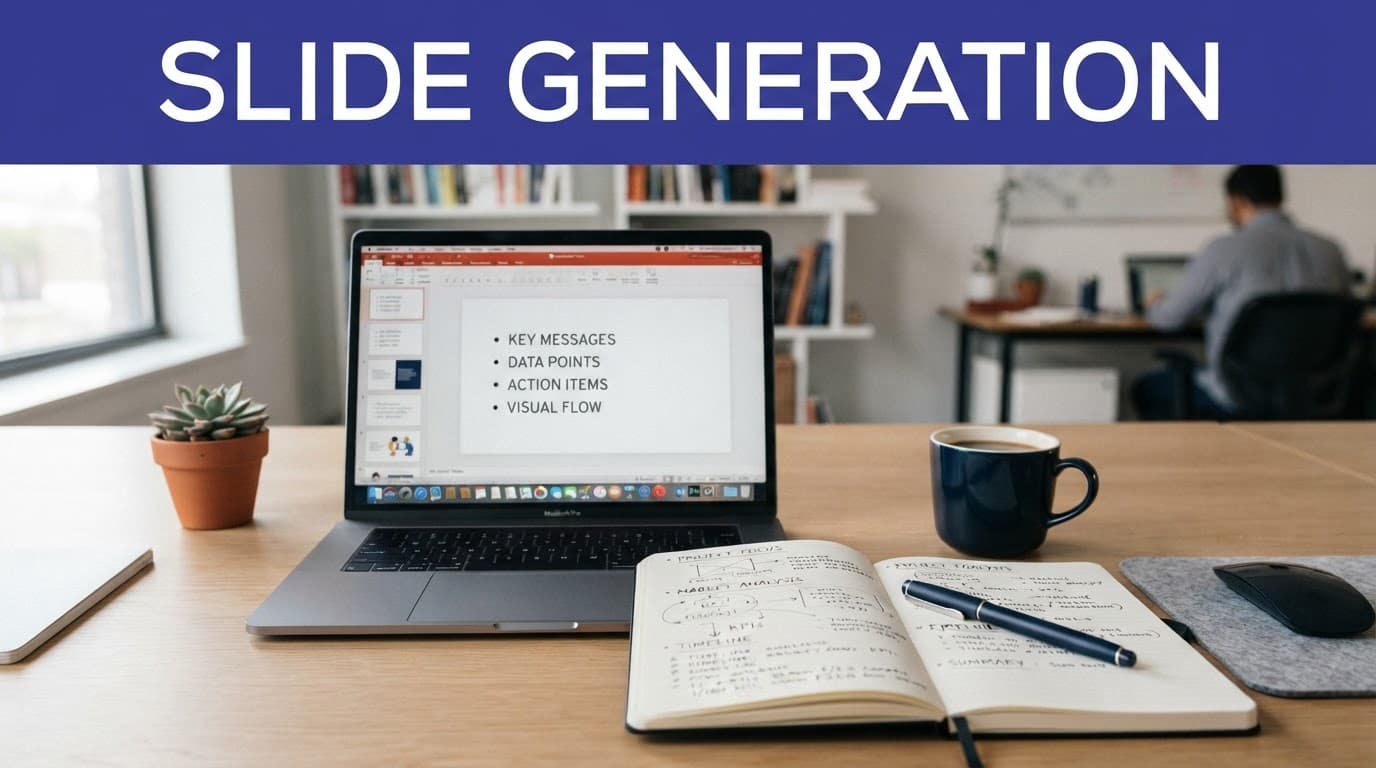
Choose the right tool for study or presentation work
Different AI tools for education solve different parts of the job. Study tools, including ChatGPT Study and Learn, help learners study lecture slides and extract knowledge from existing decks. An AI presentation maker is a presentation-focused AI presentation platform for building presentation-ready decks from an approved outline.
Tool type | Best use | What to check before committing |
|---|---|---|
NotebookLM | Studying source files, creating summaries, questions, and audio overviews, including tasks that help learners study lecture slides | Supported upload formats and source limits |
Knowt AI PPT Summarizer | Turning an uploaded deck into notes or study material with a PowerPoint summarizer | Upload limits, and how well it reads diagrams or equations when you upload powerpoint files |
NotebookLama | Keeping source files in topic libraries, then creating cited answers, quizzes, flashcards, audio, and slides | Export options and review controls |
Canva or Presentations.AI | Building a designed deck from an outline, document, idea, or URL | Native editing, templates, and brand controls |
A visual presentation maker is useful after the instructor approves the teaching outline. Canva's AI presentation maker can generate an initial deck from a prompt, then let you edit the layout, visuals, and slide order.
Presentations.AI can turn raw documents, ideas, and URLs into designed slides. It suits teams seeking brand-ready presentations.
Provide an approved lesson structure before using Presentations.AI. For collaborative workflows, check how Presentations.AI supports team review and approvals.
Tool fit matters for lesson sequence, too. A sales-focused pitch deck generator may prioritize persuasion over teaching. If the same tool functions as a pitch deck generator, expect to revise its narrative for a lesson.
Pricing changes often, and free plans usually limit exports, uploads, AI credits, or collaboration. Check Presentations.AI's current limits before comparing plans.
A current AI presentation maker comparison can help you build a shortlist. Test Presentations.AI and each alternative with the same two or three lecture notes before paying.
Test Knowt AI PPT Summarizer with PowerPoint files, diagrams, or equations, especially when those elements carry key concepts.
Export matters more than it seems. An AI presentation maker may create a static PowerPoint file, while another tool exports editable .pptx files or a Google Slides file. Presentations.AI may offer different editing or export paths, so open one sample export and edit a title, chart, image, and speaker note before building the full deck.
For final selection, compare Presentations.AI with alternatives against your source handling, privacy, editing, export, and collaboration needs.
Turn the outline into slides people can read
A lecture slide should support your explanation, not duplicate it. When a slide carries a full paragraph, learners must choose between reading and listening. Most can't do both well.
Give each slide one job. If you use Presentations.AI, review whether its AI presentation maker has reduced the slide to one clear claim. It might introduce a term, show a process, compare two ideas, or ask learners to apply a concept. Put the main message in the title, then keep the body short. When details matter, place them in speaker notes.
Use this revision prompt to review an individual slide, especially if Presentations.AI generated the first draft:
"Revise Slide 4 for a first-year economics lecture. Keep the instructor's direct, example-led voice. Reduce the body text to one claim and no more than four bullets. Move definitions, caveats, and teaching cues into speaker notes. Suggest one simple chart that does not add unsupported data."
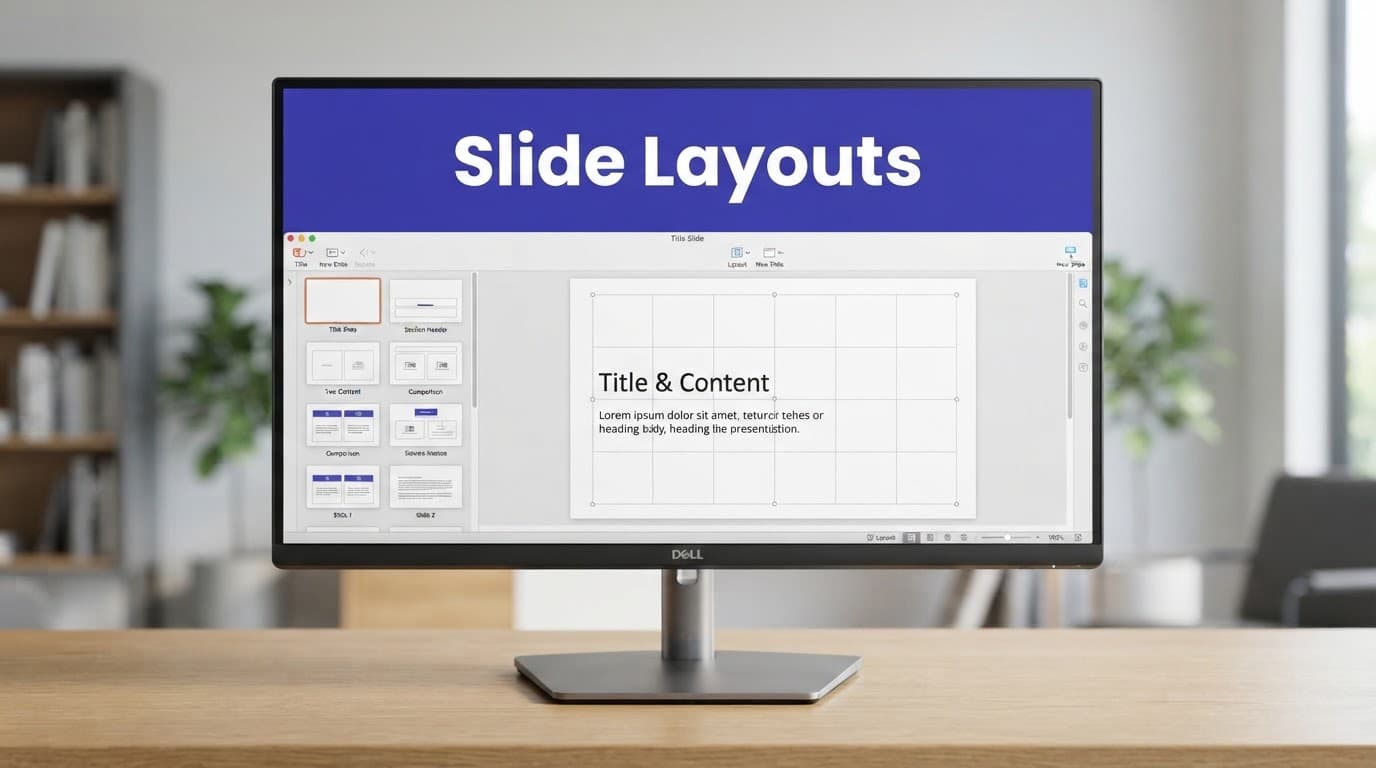
Preserving the instructor's voice takes more than asking for a "friendly" tone. If Presentations.AI drafted the deck, ask its AI slide creator to follow the instructor's examples, definitions, and transition habits rather than invent a new teaching style. Feed the AI a paragraph from the instructor's existing notes and identify the habits to retain. You might ask it to keep real-world examples, define jargon before using it, or use short question prompts at transition points.
Visual accessibility needs the same attention as wording. If Presentations.AI proposes a visual, review it rather than assuming it meets accessibility standards. Use large text readable from the back, high-contrast color combinations, and descriptive alt text. Don't communicate meaning through color alone, and label charts without tiny legends.
Educators building lessons from scratch can also use Slidesgo's AI education tools for lesson-plan ideas, making lesson planning easier without outsourcing instructional judgment. If you use an AI presentation maker such as Presentations.AI, review its templates and generated visuals before presenting. Check every image license and replace generic visuals that don't help students understand the concept.
Verify facts, rights, and privacy before presenting
AI can rearrange your material well, yet it can also add plausible statements that never appeared in the source. Check dates, quotations, citations, figures, definitions, and image attributions. For technical subjects, test equations, code, and worked examples manually.
Do not upload confidential student information or copyrighted material you don’t have permission to use. For schools, universities, and enterprise teams, use a formal vendor-review and data-processing process. Review the vendor’s data retention, model-training, encryption, access controls, and data processing agreement. Ask whether the vendor is SOC 2 Type II certified. If you’re considering Presentations.AI, review its current retention, training, and deletion policies.
If a vendor is SOC 2 Type II certified, its report can show controls were assessed over time, but it cannot address every privacy obligation or all data compliance standards. In the United States, FERPA-related duties still belong to the institution and its staff. Even if a vendor is SOC 2 Type II certified, that status does not establish FERPA compliance. Ask Presentations.AI and other presentation platforms whether your files train the model, where they are stored, and how you can delete them.
Frequently Asked Questions
Can AI create lecture slides directly from notes?
Yes. AI can turn focused notes into a slide outline, concise copy, suggested visuals, and speaker notes. Review the structure first and avoid asking for a finished deck before confirming the teaching sequence.
What should I include when prompting an AI slide tool?
State the audience, lesson length, learning outcome, slide count, and the source material the tool must use. Ask for one main teaching point per slide and instruct the tool to mark unsupported claims instead of inventing them.
How can I keep AI lecture slides readable?
Give each slide one job and put the main message in the title. Limit the body to a few concise bullets, move detailed explanations to speaker notes, and check text size, contrast, chart labels, and alt text.
Which AI tool is best for making lecture slides?
The right choice depends on whether you are studying existing material or building a presentation-ready deck. Compare tools such as NotebookLM, NotebookLama, Canva, and Presentations.AI using the same notes, then check privacy, editing, export, source limits, and collaboration features.
What should I verify before presenting an AI-generated deck?
Check facts, dates, quotations, citations, figures, definitions, equations, code, visuals, and image rights against the approved sources. Also remove confidential information and review the vendor’s data retention, model-training, deletion, and access policies.
Build Slides That Leave Room to Teach
Good AI lecture slides begin with clear notes and end with human review. Use AI to sort the material, draft an outline, condense slide copy, and prepare speaker notes. Keep your judgment for factual claims, examples, pacing, and visual choices.
The finished deck should make the lesson easier to follow, not make the presenter unnecessary. AI handles sorting, drafting, and preparation, while the instructor owns factual judgment, pacing, examples, and visual decisions. Clear slides create more room for explanation, discussion, and learning.