A term can look straightforward in one paper and mean something narrower in the next. If you're collecting definitions across readings, an academic PDF glossary needs more than an alphabetical list: every entry should lead back to the passage that supports it.
Use that trail to check each definition against its source passage. Then apply it in academic writing, essays, literature reviews, or exam answers. Start by deciding what your glossary of academic terms must record, then gather terms without separating them from their sources.
What makes an academic PDF glossary trustworthy?
A useful entry tells you what a term means in a particular source. It also shows where that meaning came from and whether the wording belongs to the author or to you.
Keep definitions and evidence separate
Record the term, the definition, the source PDF, its page number, and a short supporting passage. Label the definition as either a quotation or a paraphrase. Quotation marks should never surround wording you've reconstructed from memory.
Keep the passage even when your paraphrase seems clear. During review, you may discover that a footnote limits the claim or that the author defines the term for one population only.
Don't confuse a glossary with an index
A glossary is a definition list that explains how terms are used in a source. A textbook index points readers to places where a subject appears, while an annotated bibliography summarizes sources for a different purpose. Search results or generated indexes can help you find candidates, but none supplies a checked definition by itself.
This distinction matters for long textbook PDFs. A term may appear dozens of times, while its definition occurs once, perhaps in a chapter introduction or figure caption.
Prepare the PDFs before searching
File problems can undermine a glossary before you collect its first term. Give each PDF a clear filename, such as Author_Year_ShortTitle.pdf, and record its title, author, edition, and publication year in a source register.
Check whether the text is searchable
Try selecting a sentence and searching for a distinctive phrase. If neither works, the PDF may contain page images rather than usable text. Run optical character recognition (OCR) on the PDF textbook, then compare several recognized passages with the visible pages.
Check a dense page, a two-column page, and a page with footnotes. OCR can join words, misread symbols, or pull text from columns in the wrong order. Apply the same checks to digital textbooks, and keep the original PDF alongside the searchable copy.
Establish a page-number rule
A viewer might call a page 47 while the printed page says 39. Record both page numbers when they differ: PDF p. 47; printed p. 39. Use the same convention throughout the glossary.
For shared projects, choose one edition across your textbook PDFs as the reference copy. Page numbers from different textbook editions may not match, even when the term survives unchanged.
Extract key terms without losing context
To build a glossary of academic terms, start with likely sources of course vocabulary and scholarly terms. Check chapter glossaries, headings, bold terms, introductory paragraphs, methods sections, and passages your instructor emphasizes. Then search the remaining PDFs for recurring terms.

Collect candidates, not instant definitions
Make an initial inventory of key terms in a spreadsheet or document. Include likely variants, such as a full phrase and its abbreviation, but wait to merge them until the PDFs show they mean the same thing.
When searching for "attrition," also look for related research terms such as "dropout" or "participant loss." These terms may overlap without being interchangeable. Save the sentence around each promising match rather than copying the keyword alone.
Search across files with a bounded question
For text-based PDFs, pdfgrep offers grep-like pattern searching through PDF text, as described in its pdfgrep reference. A simple query such as pdfgrep -i 'attrition' article.pdf can help locate candidate passages. Open each match in the PDF and record its page yourself.
Document-chat tools can also help with discovery. Ask a narrow question such as: "Find passages that define attrition in these papers. Name each source and quote the supporting sentence." NotebookLama's PDF chat and study features include answers with source references, but open the cited pages before accepting an entry.
Verify each definition against its source
Read beyond the matching sentence when building a glossary of academic terms. Authors sometimes introduce a broad definition, then narrow it two paragraphs later. Tables, equations, and footnotes can also change a term’s meaning.
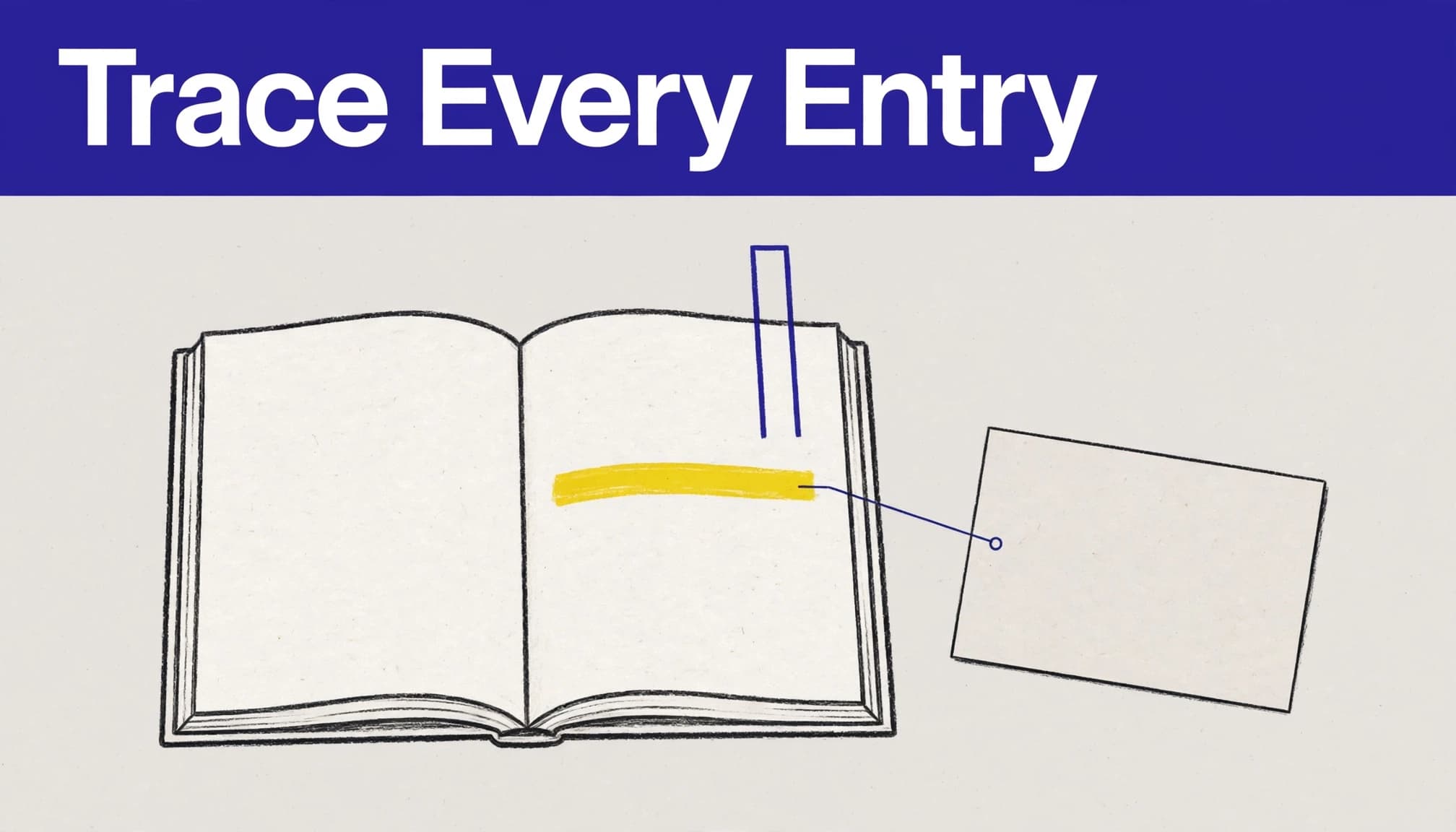
Preserve the author's wording accurately
If you quote, transcribe the words exactly and check punctuation against the PDF image. If you paraphrase, use your own words and label it accordingly. Keep the original supporting passage in a separate field so another reader can check your interpretation.
A citation beside an AI answer points to evidence, but it doesn't prove the answer matches the source. The same source-checking practice for private document research applies when your PDFs contain sensitive work: review access rules before uploading, and verify cited passages in the originals.
Flag disagreement instead of blending meanings
Suppose two studies define a measure using different time windows. Keep two source-specific entries or add a usage note that names the difference. Don't average the definitions into a sentence neither author wrote.
Mark an entry "context-dependent" when its meaning changes by discipline, method, institution, or course. For disputed terms, include each author's wording and page. Readers can then see the disagreement rather than inherit an unexplained compromise.
Use a reusable glossary-entry template
A spreadsheet works well when you need to sort by term, source, or review status. For a glossary of academic terms, give each source-specific meaning its own row, even when several rows share a headword.
Field | What to record |
|---|---|
Term | The spelling used in the source, plus any confirmed abbreviation. |
Definition | A short quotation or a clearly labeled paraphrase. |
Supporting passage | The exact sentence or brief excerpt that supports the definition. |
Source PDF | A stable filename, full title, author, year, and edition where relevant. |
Location | PDF viewer page and printed page, plus a section or figure if helpful. |
Usage note | Population, method, discipline, or other limit on the meaning. |
Related terms | Confirmed synonyms, broader terms, or terms worth comparing. |
Review status | Candidate, verified, conflicting, or needs OCR check. |
The supporting passage and location are the fields that make an entry auditable. If you can't fill them, leave the definition marked as a candidate.
A page number identifies where to look; the saved passage shows why that page supports the entry.
Choose tools for finding terms, not for replacing review
Choose study tools based on whether you need text search, an index of occurrences, or help comparing definitions. Test a tool on a few known passages before processing a whole reading list.
Search tools and PDF indexes
pdfgrep is useful for finding text patterns in searchable PDFs. It won't decide which occurrence defines a term, so review matches in their surrounding paragraphs. For scanned study resources, correct the text layer first and watch for OCR errors in technical vocabulary.
Adobe Acrobat's PDF indexing instructions describe preparing complete, searchable PDFs for indexing. That can improve retrieval across documents, but an index remains different from a source-grounded glossary.
Dedicated software and AI assistants
PDF Index Generator is a product to investigate if you need a custom index. Check its release log and current capabilities before choosing a workflow. In a trial, test whether its output gives you the definitions, supporting passages, and page references your glossary requires. Don't assume an index will supply those fields.
AI assistants can propose terms and draft paraphrases quickly, but automatic glossaries still need source review. Give them a defined source set, such as a PDF textbook, and request passages for every suggestion. Then compare the output with the PDFs, especially where definitions rely on tables, formulas, or footnotes.
Use university glossaries as references, not substitutes
A glossary of academic terms grounded in your course sources serves a different purpose from an institution-specific resource. A registrar's glossary may explain enrollment, prerequisites, or withdrawal under that university's rules. Check the current policy and institution before applying one school's definition elsewhere.
Writing guides explain abstracts, citations, and argument structure. A glossary of writing terms may cover these topics. An academic vocabulary list often groups words used in higher education reading and writing. It isn't necessarily a list of technical terms for your course.
Library guides cover search, reference materials, and library terms. The USC library terminology glossary introduces terms used in academic libraries, while Niagara's library vocabulary guide explains a call number as the letters and numbers used to identify and locate a book. These are web guides, not PDF sources, so don't record them as PDFs. For a downloadable university glossary, check the institution's site for an official PDF and its publication details.
Run a quality check before sharing
Review the glossary as both a reader and a source checker. A useful final pass includes:
Open a sample of entries in the original PDFs and confirm the filename, edition, page, and passage.
Compare every quotation word for word; check that paraphrases preserve qualifications.
Search for duplicate headwords with different meanings before merging anything.
Recheck entries drawn from scans, tables, figures, and two-column pages.
Mark unresolved conflicts visibly rather than publishing an unsupported single definition.
Have a second reader audit several entries if the glossary will support a research team or class. Give them only the entry and source PDF, then see whether they can find the passage without your help. Fix any location that sends them to the wrong page.
Key Takeaways
A source-grounded academic PDF glossary pairs each definition with its PDF, page number, and supporting passage. Search and AI tools can speed up collection, but they produce candidates until you've checked the source.
Keep quotations separate from paraphrases. When authors disagree or use a term under different conditions, preserve those differences in separate entries or explicit usage notes.
FAQ
Can software automatically generate a glossary from a PDF textbook?
Software can find terms, extract passages, and suggest definitions. It cannot reliably decide which use your course needs without review. Check the proposed definition and its page in the textbook before adding it as a verified entry.
Can I search several textbook PDFs for the same term?
Yes. Search each searchable PDF textbook or add several textbook PDFs to a document workspace. Keep results identified by filename, since matching page numbers in different PDFs refer to different sources. Include spelling variants and related terms, then inspect the matches in context.
Should I use a university definition when my paper gives another one?
Use the definition that fits your assignment and source. A university policy term may apply only at that institution, while a research paper may define a term for its own method. Record both with their sources if the difference matters.
Conclusion
The quickest term list is rarely the most dependable one. An academic PDF glossary earns its place in your study or research workflow when you can return from any definition to the passage behind it.
Keep that trail intact, and unfamiliar terms become easier to check, compare, and use accurately.