Useful answers may already exist across your website, PDFs, release notes, and support threads. Yet visitors and employees still waste time searching for a page buried three clicks deep.
A searchable knowledge base brings scattered content together, making reliable answers easier to find in seconds. It pairs well-structured articles with search that understands wording, intent, permissions, and changing information.
The work starts with content structure, then moves into search, governance, and ongoing review.
Key Takeaways
Build the knowledge base around focused, task-based answers with clear owners, revision dates, and approved canonical sources.
Combine keyword, typo-tolerant, semantic, and filtered search to match both exact terms and natural-language questions.
Choose knowledge base software based on content location, audience, authoring needs, permissions, integrations, and multilingual support.
Protect private information with query-time access controls, separate public and internal collections, and permission testing with real user roles.
Review search performance and content regularly to remove stale guidance, improve zero-result queries, and keep AI answers grounded in current sources.
How to build a searchable knowledge base from a website
A knowledge base is more than a blog archive with a search box. It is a practical knowledge management system, with focused answers, procedures, technical documentation, interactive guides, troubleshooting material, policies, and reference content. Each item should help someone complete a task without opening a support ticket or asking a teammate.
Start by deciding who needs the answers. An external customer portal reduces repetitive customer support requests. An internal knowledge base helps employees find approved processes, product details, and project management decisions. Many companies need both, although they should not share the same access rules.
Knowledge base type | Primary readers | Typical content | Search requirements |
|---|---|---|---|
Internal | Employees, partners, contractors | SOPs, policies, project management decisions, onboarding | Role-based filtering and private source permissions |
External | Customers and prospects | Setup guides, FAQs, billing help, troubleshooting | Public access, clear navigation, plain-language answers |
A customer-facing article should explain one outcome at a time, such as "reset your password" or "export a report." Internal documentation can contain more context, but it still needs a clear owner, a revision date, and a direct answer near the top.
When people resolve routine issues through self service, support teams handle fewer support tickets. They can spend more time on cases that need human judgment. Kayako's knowledge base guidance for self-service makes the same point: helpful documentation should remove the need to contact support whenever possible.
Build search that finds the right answer
Before adopting new knowledge base software or adding artificial intelligence, assess your existing search functionality. Inventory the content you already publish. List every page, help article, downloadable guide, technical documentation source, and document source. Mark duplicates, retired pages, thin articles, and pages with conflicting instructions.
Choose one approved canonical knowledge source for each answer. For example, a billing policy should live in one approved article, even if other pages link to it. This prevents search results and AI answers from citing two versions of the same rule.

Indexing, metadata, and retrieval
Indexing converts website content into records a search engine can retrieve quickly. The index should capture a page's title, headings, body text, URL, author, last-reviewed date, product area, language, and access level. Good document-indexing practices make those records easier to search, filter, and maintain. Include language metadata to provide multilingual support and help users find the right localized version.
Break long pages into meaningful sections. A 3,000-word release guide should not become one giant search result. Instead, index chunks under clear headings such as "Known limitations" or "API access and authentication." Keep each chunk linked to its parent article and canonical URL.
Modern search uses several methods together:
Keyword search finds exact terms, product names, error codes, and policy phrases.
Typo tolerance handles common misspellings, such as "integartion" instead of "integration."
Semantic search matches meaning, so "invite a colleague" can surface an article called "Add team members."
Filters narrow results by product, date, language, content type, or audience.
Hybrid search usually gives the strongest results. Exact keyword matching is useful for an error code, while semantic retrieval helps with natural language questions. Add synonyms for terms your readers use differently, such as "invoice," "bill," and "receipt."
Pick knowledge base software that fits your team
The right knowledge base software depends on where your content lives and who will maintain it. Authoring, maintenance, access controls, permissions, and multilingual support should guide the choice. Support teams may prefer polished authoring tools. Developers may prefer a flexible search engine connected to a headless publishing platform or existing website.
Best fit | Tools to consider | Main trade-off |
|---|---|---|
Collaborative internal documentation | Notion, Confluence, Slite | Easy editing, though permission design can become complex |
Customer support portal | Zendesk Guide, Document360, Helpjuice, Stonly | Strong self-service features, with less control over the search stack |
Custom website search | Meilisearch with your content management system | Full control, though developers must operate indexing and monitoring |
Document360 combines article publishing, review workflows, AI search, and support-focused capabilities for technical documentation. Its current product set also includes PDF article import and source-grounded conversational search. Zendesk Guide works well when support agents already live in Zendesk, because customers and agents can draw from the same help content.
For a custom build, Meilisearch supports full-text, semantic, and hybrid search, plus typo tolerance, filters, synonyms, analytics, and access options. A custom implementation can provide API access to documentation and product data across multiple website sections.
A platform cannot repair weak articles. Write task-based titles, use descriptive headings, and place the answer before background detail.
Connect workflows without exposing private knowledge
Integrations keep documentation close to the work. Slack and other collaboration tools can surface relevant technical documentation when someone asks a recurring question. Jira, a project management tool, can trigger workflow automation when a ticket closes or a product change ships. Google Drive and Microsoft 365 connectors are approved third party integrations that can bring selected files into one enterprise search experience.
However, do not index every file by default. Draft contracts, employee records, customer exports, and security reports often belong outside the general search index. Start with approved folders and document types, then expand after testing.
Access controls should filter results at query time, not only when content enters the index. A user who cannot open a source document should never see its title, excerpt, or AI-generated summary in results. Connect identity through SSO, map groups through SCIM where available, and test permissions with real employee roles.
Keep public and internal content in separate collections whenever possible. That separation reduces the chance that a chatbot using the internal knowledge base exposes a private answer to a customer. Review vendor data-processing terms, retention settings, encryption practices, data security controls, and model-training policies before sending private documents to an AI service.
Stop stale content before it damages trust
Search quality drops when stale content accumulates. A well-ranked article that describes a retired feature is worse than no result because it sends people in the wrong direction. Every page needs an accountable owner, a published date, a last-reviewed date, and a review interval.
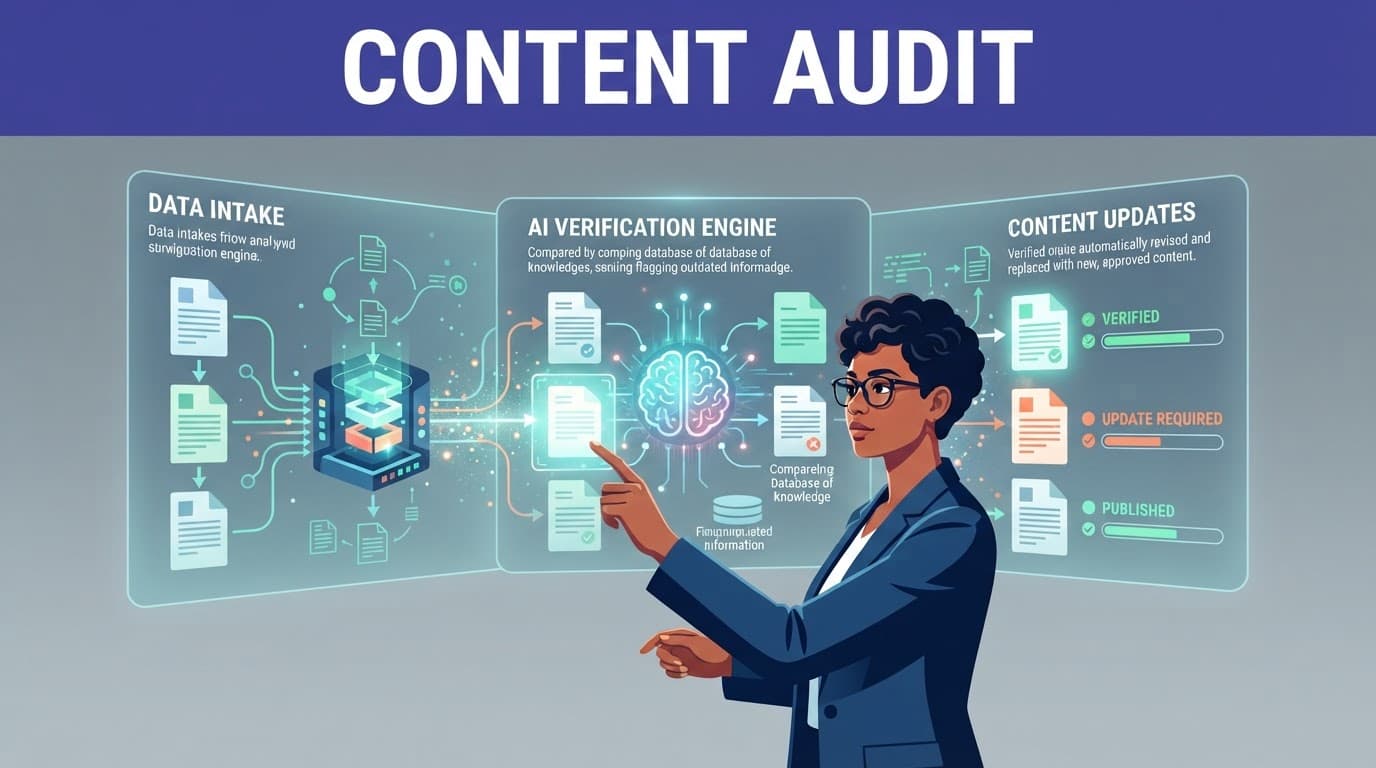
AI agents can detect stale content by comparing help articles against product release notes. They can flag broken links, identify duplicate guidance, and spot pages untouched for a set period. They can prepare automated updates or trigger review tasks, but a named subject-matter expert must approve every change before publication.
An AI answer is only as dependable as the current, permitted sources it can retrieve.
Use version control for high-impact content such as pricing, security guidance, legal policies, and technical documentation. Keep a revision history, show when a change took effect, and archive retired pages with redirects where appropriate.
Test search every month with a fixed set of real questions from support tickets, site search logs, and employee requests. For each query, record the expected source, first-result accuracy, filter performance, and whether an AI answer cited the right page. Use analytics and reporting to spot trends across these results. Review zero-result searches and failed queries first. The American Society for Indexing's best-practice guidance is a useful reminder that labels and relationships shape whether people can find information at all.
Launch and maintenance checklist
Audit existing website pages and choose one canonical source for each recurring answer.
Create templates with an owner, review date, audience, product tag, and access level. Confirm the selected knowledge base software supports the required templates, permissions, and review workflow.
Index titles, headings, body sections, metadata, technical documentation, and approved file attachments.
Configure typo tolerance, synonyms, semantic search, multilingual support, and filters around real user language.
Separate public, internal, and restricted content before connecting AI search.
Test access controls with employee, contractor, manager, and customer accounts.
Track self service usage, zero-result searches, support-ticket themes, and unsuccessful AI responses.
Assign review owners and trigger checks after releases, policy changes, and product retirements. Identify and remove stale content during each check.
Frequently Asked Questions
What is a searchable knowledge base?
A searchable knowledge base brings website pages, technical documentation, PDFs, support content, and other approved sources into an organized system. It helps customers and employees find reliable answers quickly without opening a support ticket or asking a teammate.
How can I improve knowledge base search results?
Start with accurate indexing, meaningful content sections, descriptive metadata, and one canonical source for each recurring answer. Combine keyword search with typo tolerance, semantic retrieval, synonyms, and filters based on real user queries.
How do I keep private information out of search results?
Use query-time permissions so users cannot see a source, title, excerpt, or AI summary they are not authorized to access. Separate public and internal collections, connect identity through SSO and group mappings, and test access with real customer, employee, contractor, and manager accounts.
How do I prevent a knowledge base from becoming outdated?
Assign every page an owner, published date, last-reviewed date, and review interval. Use release events, analytics, broken-link checks, and zero-result searches to trigger reviews, while requiring a subject-matter expert to approve important updates.
A Knowledge Base People Trust
A website becomes useful knowledge infrastructure when answers are easy to find, current, and visible only to the right people. Strong indexing leads visitors to reliable sources, while permissions and regular reviews keep them trustworthy.
Treat the searchable knowledge base as a maintained product, not a one-time content project. Its value grows when search feedback steadily improves the information people rely on.