A 40-page article can consume an evening, yet the same reading may fit into a walk, commute, or chores. Turning course readings to audio gives you another way to spend time with difficult material without replacing close reading.
The goal isn't to play every PDF at double speed and hope it sticks. Good audio study tools preserve structure, flag ideas worth revisiting, and create pauses for recall. Start with a clean document and a study plan, then let a text to speech tool handle the listening.
Key Takeaways
Use course readings to audio as a second pass or review method, not a replacement for close reading. Keep the original document nearby for charts, quotations, equations, and evidence.
Prepare PDFs before playback by checking for real text, running OCR on scans, removing repeated headers, and preserving headings, citations, and reading order.
Start with a manageable workflow: test the first few minutes, choose a comfortable speed, save timestamps and short notes, and return to the source to resolve unclear points.
Improve recall with chapter-based audio, pauses, active text highlighting, retrieval questions, and gradual speed increases during review.
Protect course materials by checking service permissions, avoiding sensitive student data, keeping converted files private, and following copyright, library, and course rules.
Why course readings to audio work best as a second pass
Text to speech can make assigned reading more flexible when your schedule has gaps that don't suit a laptop or printed text. It can reduce visual fatigue and supplement accessible course materials for students with dyslexia, low vision, attention differences, or temporary injuries. If you have accessibility needs, check whether your school offers a service such as sensus access.
However, listening alone can hide confusion. Dense arguments, equations, tables, and unfamiliar names often need your eyes on the original page.
Use listening to reinforce, not replace, close reading
Read the abstract, introduction, headings, and conclusion first. Then listen to the full text while following along, or use audio for a second pass after annotating.
This approach helps you hear an argument's shape. Repeated terms stand out, transitions become easier to notice, and you can mark a timestamp when a claim needs another look.
Audio is strongest for review and repetition. Use the source document when you need to interpret a chart, verify a quotation, or assess an author's evidence.
Match the format to the assignment
A narrative history chapter often works well as continuous audio. A research article with results tables may work better in short sections. For philosophy, law, and theory, pause after every major heading and restate the claim in your own words.
Listening is a study mode, not a shortcut around engagement. Treat it like a recorded seminar where you still need to take part.
Prepare PDFs before converting them to speech
The quality of text to speech depends more on the file than on the voice. Clean DOCX files and tagged pdf files usually read in a sensible order. Scanned articles can become a mess of page numbers, two columns, and footnotes unless you prepare them first.
Check whether the PDF contains real text
Try selecting a sentence and copying it into a blank note. If the pasted result is readable, the PDF likely has a text layer. If you can't select words, or copied text arrives as gibberish, it is probably a scan.
Run scanned documents through optical character recognition, often called OCR, before using text to speech. Review the first page, one dense middle page, and the references afterward. OCR frequently misreads ligatures, hyphenated words, numbers, citations, and author names.
Accessible course materials need tags, headings, and a reliable reading order. The PDF accessibility guidance from adobe acrobat can help identify issues before playback begins.
Protect headings, citations, and page references
Keep the title, author, section headings, and in-text citations in your listening copy. Headings give you audible landmarks. Citations tell you when a claim belongs to a source, which matters when you later write a paper.
Remove repeated page headers, footers, and page numbers if your app reads them aloud. You can also delete reference lists from a commute-ready version, but retain the original scholarly pdf files.
For a two-column paper, convert it to a single-column document when possible. Then add clear heading labels such as "Methods" and "Discussion." Those small edits prevent the voice from jumping sideways across the page.
A beginner workflow for turning readings into audio
You can use this routine on a phone, computer, tablet, or e-reader with text to speech support. It works with a built-in reader, a mobile app, or an upload-based service for readings and web articles.
Save an authorized copy of the reading in a course folder, keeping the pdf files under a clear name such as
Week-4-Smith-Methods.pdf.Create a listening version from the course pdf files by OCR-scanning the pages if needed, removing duplicate headers, and checking the reading order on two or three pages.
Open the file in a text to speech reader and listen to the first two minutes before committing. Stop if the voice reads columns, citations, or headings out of order.
Set a comfortable speed with the speed control, and turn on word or sentence highlighting if available. Begin around 1x to 1.25x for unfamiliar material.
Save timestamps and short notes such as "12:40, define social reproduction" rather than attempting full notes while walking.
Return to the original document later and resolve each timestamp with a margin note, flashcard, or quotation.
If you want files for an offline commute, look for a service that offers MP3 conversion or downloaded audio. Choose its MP3 conversion option when you need a file instead of streamed audio. Check export rules first, because offline functionality can differ across apps, devices, and subscription levels.
Text-to-speech tools for academic documents
The best text to speech choice depends on your files and study habits. Built-in tools often handle Word documents and accessible PDFs. Dedicated text to speech services may offer more voices, library syncing, or audio-file export.
Built-in options for Word and PDFs
Microsoft Word's Immersive Reader includes Read Aloud and can provide active text highlighting as it plays. It also offers controls for line focus, spacing, page color, and voice speed. Microsoft's guide shows how to use Immersive Reader in Word, making it a practical first option for DOCX readings.
Adobe Acrobat Reader includes Read Out Loud for PDFs and uses voices installed on your device. Adobe notes that tagged PDFs follow their logical structure, while untagged files may need reading-order adjustments. Its Acrobat Reader accessibility features explain the limitation clearly.
Some institutions also offer Sensus Access for converting accessible course materials. It can help when your school supports it, but it isn't interchangeable with every reader in the table.
When a dedicated reader makes sense
If you switch between web articles, EPUBs, PDFs, and phone listening, a dedicated text to speech reader can help. These audio study tools can read across formats, but test one with your hardest reading, not a clean one-page handout.
In plain language, a TTS reader reads content aloud, while a file-conversion service creates a separate audio file. Apps built for audiobooks may not preserve headings, citations, or academic structure.
Compare how a browser extension handles web articles with the mobile app. Check whether cloud sync keeps your place across devices.
Compare a free plan with a premium plan for voice access, export limits, and document length. Then check whether the premium plan adds offline listening, cross-device access, or useful file formats.
Option | Useful for | Check before relying on it |
|---|---|---|
Microsoft Word read-along tools | DOCX files and read-along review | Formatting may change after PDF conversion |
PDF read-aloud tools | Accessible PDFs already saved locally | Scans and multi-column files can read poorly |
PDFs, EPUBs, and web articles | Test document parsing and account terms | |
Listening to text, PDFs, and audio exports | Confirm export limits and voice access for your plan | |
Speechify | Reading PDFs, documents, and web pages across devices | Compare offline and export features before subscribing |
For a shared test, compare natural reader, Speechify, and Adobe Acrobat on the same difficult file. Check offline and export features before subscribing.
Natural-sounding voices make long sessions less tiring, but clarity matters more than personality. Choose a voice that pronounces names and technical terms consistently, and test AI voices with difficult terminology. If it fails repeatedly, edit the troublesome phrase in your listening copy or slow the playback.
Build chapter-based and discussion-style audio
A single six-hour audio track is hard to revisit. Break long readings into useful units so your audio library works like a table of contents.
Make short chapter files with audible landmarks
During mp3 conversion, keep each textbook chapter, article section, or weekly reading in its own file. Start each file with the course, author, title, and section name. For example: "Sociology 302, Durkheim, Division of Labor, Chapter Two."
Add a brief spoken or typed cue before major headings: "Pause here and explain the argument about specialization." If your service exports MP3 files, use consistent names such as SOC302_W4_Durkheim_Ch2.mp3.
A separate five-minute "key claims" track can help before class. Keep it tied to your own notes, including lecture notes, not an automated summary alone.
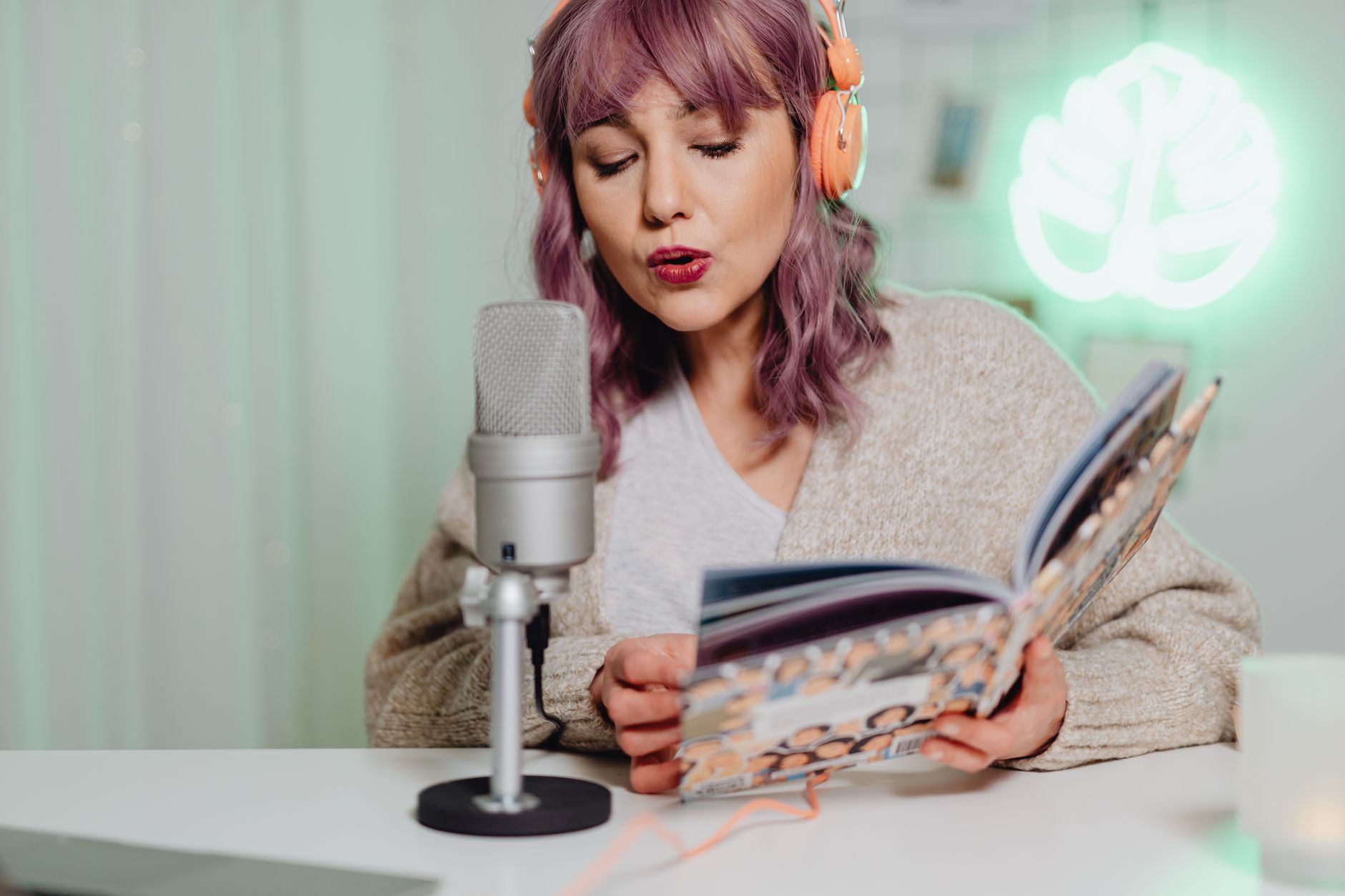
Photo by Karolina Grabowska
Create a discussion-style review track carefully
After the original reading, draft questions requiring explanation, not recognition. Use them as an active review track, not passive study podcasts. Make an audio recording yourself, or use a voice generator to read them with long pauses.
Try prompts such as:
"What problem does the author identify in the opening section?"
"Which evidence supports the central claim?"
"Where would a reasonable critic disagree?"
"How does this reading connect to last week's argument?"
AI-generated summaries can help locate themes, but they can omit qualifications or invent details. Compare every summary, question, and quotation with the assigned text before studying it or sharing it with classmates.
Improve recall while you listen
Playback speed should match the task, so use speed control deliberately. With text to speech, use 1x or slower for a first exposure, unfamiliar terminology, or foreign-language material. Increase speed gradually for review only when you can still summarize and explain each section.
Pair active text highlighting with retrieval practice
Word-level highlighting helps you keep your place when you read along. It also makes it easier to stop at a sentence and annotate the exact claim. Still, highlighting by itself doesn't prove you understand the passage.
Pause every 5 to 10 minutes. Without looking, state the main point, name one piece of evidence, and identify one term you couldn't explain yet. This retrieval practice checks reading comprehension before you check the source.
Turn unresolved points into flashcards after the session. A card should ask for an explanation or comparison, not merely repeat a bolded definition.
Use audio in a weekly study cycle
Listen once before a seminar to gain familiarity. After class, revisit only the sections connected to your lecture notes, discussion points, or assignments. Finally, use a short chapter-based recap before an exam.
This cycle gives the recording a job at each stage. It also prevents passive re-listening from becoming a substitute for practice.
Respect privacy, copyright, and course rules
Uploading a reading to a text to speech service may send its contents to a third-party provider. Don't connect an app to Canvas, Google Drive, or another learning system unless you understand the permissions it requests.
Keep student data out of uploads
Avoid uploading feedback, graded work, peer discussion posts, clinical cases, participant data, or files that include student names and IDs. Check whether your university provides an approved accessibility tool or AI platform for accessible course materials that meet your accessibility needs. Some campuses may approve services such as sensus access, but follow campus policy before using a personal account.
The U.S. Department of Education outlines third-party provider responsibilities under FERPA. That guidance is aimed at providers, yet it reinforces why education records require careful handling.
Treat course readings as licensed material
Buying a textbook or accessing a library article doesn't automatically grant permission to distribute its text or audio. Keep converted files private, don't share MP3s publicly, and follow your syllabus and library license terms.
Fair use is fact-dependent, not a blanket classroom exception. The U.S. Copyright Office's fair use FAQ is a useful starting point when you need to understand the limits.
Frequently Asked Questions
Can audio replace close reading for course assignments?
Usually, no. Audio works best as a second pass, review method, or way to build familiarity, while the original text is still necessary for interpreting charts, checking quotations, and evaluating evidence.
How should I prepare a scanned PDF for text to speech?
First, check whether you can select and copy readable text. If not, run the document through OCR, then review several pages for errors involving columns, citations, numbers, hyphenated words, and names.
What playback speed should I use?
Begin around 1x to 1.25x for unfamiliar or technical material, and slow down when terminology or arguments become difficult. Increase the speed gradually for review only if you can still summarize and explain each section.
Which text to speech tool is best for academic readings?
The best choice depends on your file formats, devices, and need for features such as highlighting, offline listening, or MP3 export. Test any reader with a difficult PDF or multi-column article before relying on it for a full course.
Is it safe to upload course readings to an audio service?
Uploading a document may send its contents to a third-party provider, so check permissions and your institution's policies first. Avoid uploading graded work, student data, clinical cases, or other sensitive files, and keep converted course materials private.
Make Audio a Deliberate Study Habit
Course readings to audio work when the recording keeps the source's structure intact and prompts you to retrieve ideas, not merely hear them. A clean file, text to speech playback, natural-sounding voices, and well-placed pauses matter more than a long feature list.
Keep the original reading close by. Audio should bring you back to the text with better questions, stronger recall, and a clearer sense of what needs another look.