Scanned documents can look perfect on screen yet be useless for search, quotation, or analysis. If you can't select or copy a sentence as editable text, or find a name with Ctrl+F, you're working with an image, not usable text.
OCR scanned PDFs turn those page images into a searchable PDF by adding a text layer. That layer can support editing and analysis, but OCR accuracy matters, and recognition is only the first step. You still need to check the text, preserve where each statement came from, and treat AI output as a starting point rather than a source.
Use this workflow when accuracy matters, whether you are reviewing archival records, course readings, contracts, case files, or research material. It helps turn image-based files into digital documents you can search, check, cite, and analyze with AI.
Key Takeaways
OCR adds a searchable text layer to image-based PDFs, but it does not guarantee accurate or well-structured text.
Improve scan quality, select the correct OCR languages, and test representative pages before processing a full document.
Use AI to locate, organize, summarize, and compare source material, but require page-level citations and verify important claims against the original scan.
Preserve the original file, save a separate OCR copy, and record both PDF and printed page numbers when quoting or citing passages.
Review tables, columns, footnotes, handwriting, accessibility, and privacy requirements before sharing or relying on OCR output.
Tell whether a PDF contains real text
A PDF files can contain photographed pages, machine-readable text, or both. The difference determines how you should process it.
Run three quick checks
First, try to highlight a sentence. If the cursor selects individual words, the PDF probably has a text layer. If it drags a rectangle across the page, it's likely an image-only PDF.
Next, search for a distinctive word, name, or date that you can see on the page. A failed search is a strong sign that the document needs OCR. Finally, copy one paragraph into a plain-text editor. Garbled characters, missing spaces, and jumbled line breaks can reveal a weak or damaged text layer.
A searchable file can still contain errors. Old PDFs may include partial OCR from a prior scan, so test several pages rather than trusting one successful search.
Know what OCR changes
Optical character recognition (OCR) examines the shapes in a page image and estimates the letters, words, and layout they contain. It then adds a text recognition layer behind the visible scan, making the content machine-readable. The original page image remains in place, which helps preserve the document's appearance.
That layer can make a searchable PDF's content selectable and copyable, and may provide editable text, though formatting may not be perfect. Adobe describes OCR as the step that turns static document images into a searchable PDF, while its accessibility guidance for Acrobat recommends recognizing scanned text before applying related PDF features.
How OCR scanned PDFs become useful for analysis
OCR can extract text from visible page images before AI analysis begins. AI can then help you find patterns, build outlines, answer source-grounded questions, and compare passages across files. These are related jobs, but they aren't interchangeable.
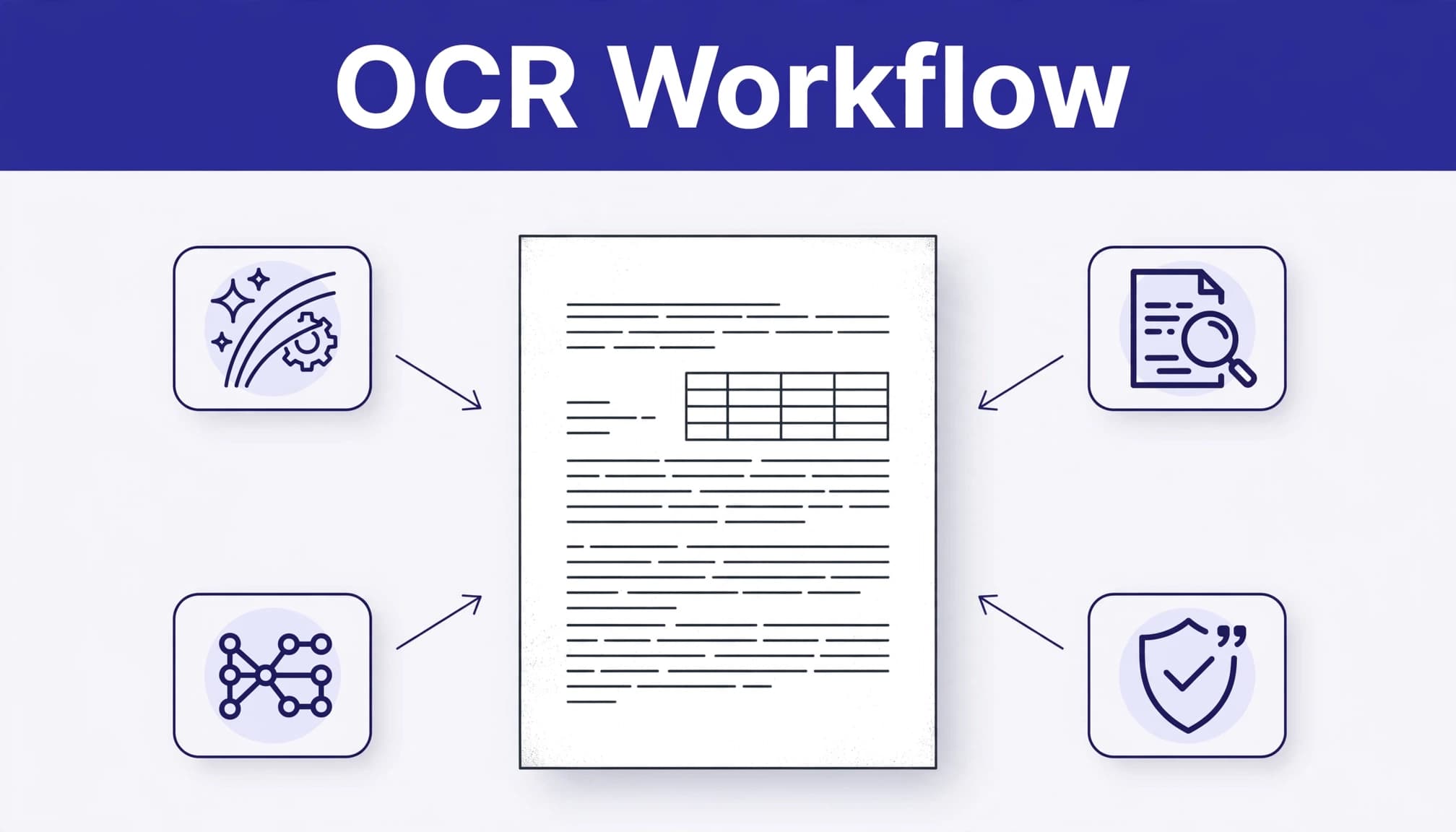
OCR reads visible characters
OCR is strongest with clean printed text, high contrast, and a language model that matches the document. A report printed in English needs different recognition settings than a bilingual French and English archive file.
For repeatable local processing, OCRmyPDF is OCR software that adds a text layer to image PDFs while keeping the page image. Its OCRmyPDF documentation explains its searchable PDF workflow and options for page processing. It uses Tesseract OCR for recognition, so language packs matter.
Tesseract OCR defaults to English in many setups, and its command-line documentation uses three-character language codes. OCR languages and installed language packs affect recognition. A mixed-language file may need a setting such as eng+fra, provided both language packs are installed.
AI interprets extracted content
Document AI can organize extracted content, summarize a 200-page scan quickly, group repeated themes, pull candidate dates, or compare passages across files. It can also misread the source, invent a connecting detail, or flatten a qualified statement into a stronger claim.
Use AI to locate and organize evidence. It can't certify the source.
OCR errors and AI errors can compound. If the text layer misreads "1891" as "1881," an AI summary may repeat the wrong date with complete confidence.
Ask for page-level citations in every answer. Then open the cited page image and compare the wording before you quote, publish, submit, or act on the result.
Improve poor scans before you recognize text
OCR cannot restore information that the scan never captured. Scanned documents with blur, skew, gutter shadows, or low resolution produce weaker results. Source quality directly affects OCR accuracy.
Start with a cleaner source file
If you can rescan, use a document scanner or camera setup with even lighting and a flat page. Use enough resolution to keep small type sharp. A scan at 300 dpi is a practical baseline for ordinary printed documents. Use a higher setting for small print, pale ink, marginalia, or damaged records.
Before OCR, rotate crooked pages and remove blank sheets. Increase contrast only when it makes letters clearer, so OCR software receives a cleaner input. Aggressive cleanup can erase faint punctuation, diacritics, or pencil notes.
For documents you cannot rescan, work from the best available copy. A PDF downloaded from an archive may have a better master scan than a photocopy that has been emailed multiple times.
Treat handwriting and unusual scripts separately
Handwriting is a different problem from typed text. Even strong recognition systems can confuse joined letters, abbreviations, faded ink, and cursive annotations. Transcribe short handwritten passages manually. Alternatively, test a handwriting-capable OCR tool on a small sample. Treat its output as a draft and check it line by line.
Non-English documents need the correct language selection because it affects accents, character shapes, word boundaries, and dictionaries. Tesseract OCR requires language data that matches the document. For documents in multiple languages, process small samples first and inspect the output before running hundreds of pages.
Older fonts, blackletter, vertical writing, and complex scripts deserve the same caution. Keep a record of the language settings and OCR version used for each collection.
A practical workflow for OCR and AI analysis
A disciplined sequence prevents most avoidable mistakes. Keep the original file untouched as a visual reference, and use a separate OCR copy for analysis.
Create a searchable working copy
Save an unaltered original with a clear filename, such as
Archive_Original.pdf. If your workflow requires long-term preservation, also save a PDF/A copy.Make a second copy for OCR, then rotate pages, deskew pages, or split large PDF files if processing repeatedly fails.
Run OCR after selecting the document's primary languages.
Save the output as a separate searchable PDF, not over the original.
Test page search, text selection, and copying on pages near the beginning, middle, and end.
In Adobe Acrobat Pro, open the scan, choose All tools, then select Scan & OCR or Edit PDF. Run Recognize Text for the file, save the result, and inspect the pages. Acrobat's PDF accessibility checker instructions also explain that OCR should come before the broader review.
For local batch jobs, use this basic pattern: ocrmypdf -l eng input.pdf output.pdf. OCRmyPDF is a repeatable command line tool that uses Tesseract OCR or compatible language data for local processing. A browser-based OCR tool can be a free online tool for low-risk files (check retention and privacy terms because it's cloud-based).
Build analysis around page references
Once the file is searchable, give AI a bounded task to extract text or passages tied to a defined topic, with page numbers. You can also request an outline or a table of named entities with source pages.
Avoid prompts that ask for broad conclusions without citations. Instead, ask: "List every mention of the 1918 ordinance. Quote the sentence and include the PDF page number." This creates a review trail.
Keep two kinds of page numbers when needed. The PDF viewer may show page 47, while the printed page says 39. Record both as PDF p. 47, printed p. 39. That detail saves time when another reader checks the source.
Handle tables, columns, footnotes, and forms with care
Page layout often causes more trouble than letter recognition. OCR can preserve the original layout visually while losing reading order or relationships between elements. It may read a two-column journal article across the page or merge a table's rows into an unreadable stream.
Check structure, not only spelling
Review representative pages with the hardest formats before analyzing the full document. Test:
Multi-column pages, where reading order often breaks.
Tables, where headers and values can detach from one another.
Footnotes, superscripts, and citations, where tiny text disappears or moves.
Forms, where labels and handwritten entries may blend together.
When PDF data extraction matters, compare every important row and column against the page image. Copying a table into a spreadsheet can help, but never assume the extracted cells line up correctly. If the table supports a conclusion, retain a page image or link beside the cleaned data.
Preserve context when you extract quotes
A sentence taken from OCR may omit a page heading, a footnote, or a qualifier on the next line. Read the paragraph before and after any passage you plan to use.
Researchers should save excerpts with the document title, stable filename, PDF page, printed page if available, and a short note about any correction. Legal and administrative teams should also retain the original scan and a dated working copy. This makes corrections traceable rather than mysterious.
Verify output, accessibility, and privacy before sharing
Useful analysis depends on a defensible source record. OCR verification checks dates, names, numbers, quotations, citations, and AI claims against the page image. A few targeted checks are faster than repairing a flawed summary after it spreads.
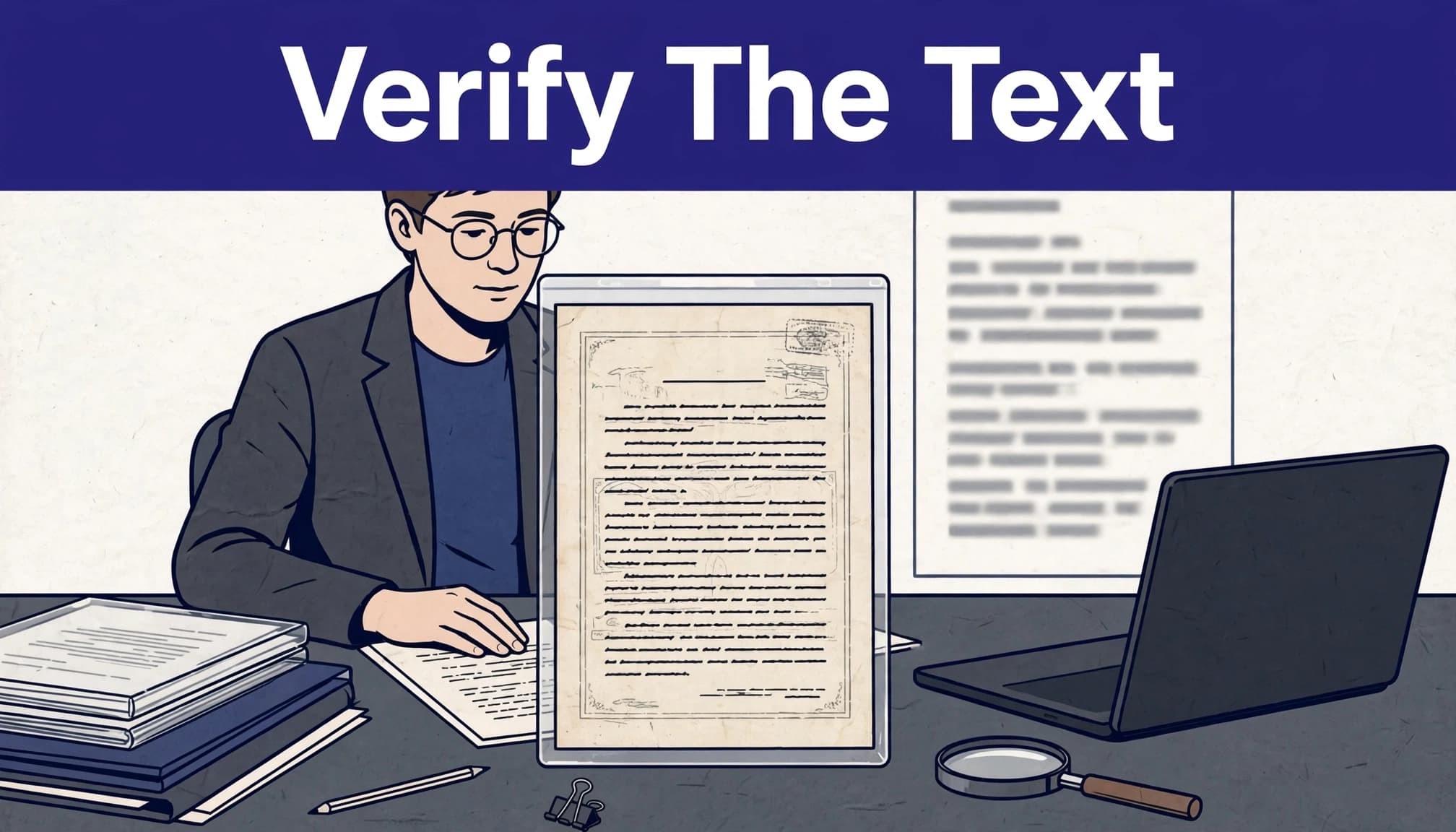
Verify high-stakes details against the scan
Check every number, proper name, address, date, quotation, legal phrase, and citation that affects your conclusion. Search for suspicious patterns such as O and 0, l and 1, or broken hyphenated words.
Then sample ordinary paragraphs as well. If the sample contains many errors, improve the scan or change settings before asking AI to analyze the entire document.
When AI identifies a theme or makes a claim, trace it back to the cited page. If it cannot point to a page and direct wording, treat the claim as unverified.
Make the document usable and protect it
A text layer helps screen readers access content, but OCR alone doesn't create full accessibility in a PDF. Reading order, heading tags, image descriptions, table structure, and language metadata may still need work. The W3C includes OCR for scanned PDFs among techniques that provide actual text for browsers, screen readers, and braille devices.
Export and archival file formats don't replace validation of reading order, tags, tables, and text. After verification, PDF/A can support preservation, but it doesn't correct OCR errors.
Confidential records require a local-first approach to security and privacy. Before using a web-based OCR tool, assess its retention practices and data terms. Don't upload client files, medical records, unpublished research, student information, or protected legal material unless your organization approves and the provider's terms permit it.
Desktop OCR software or local OCRmyPDF processing with Tesseract OCR can keep the file on your own system during recognition.
Remove unnecessary personal data before sharing an OCR output. Redaction must alter the visible page content. Covering text with a black rectangle isn't sufficient if the underlying content remains recoverable.
Frequently Asked Questions
What is an OCR scanned PDF?
An OCR scanned PDF is an image-based PDF with a machine-readable text layer added through optical character recognition. This layer makes the document searchable and selectable while preserving the original page image.
How accurate is OCR for scanned documents?
OCR accuracy depends on scan quality, typography, language settings, layout, and whether the text is printed or handwritten. Always verify names, dates, numbers, quotations, and other important details against the page image.
Can AI analyze a scanned PDF without OCR?
AI generally needs extracted text to search and analyze a scanned PDF reliably. Run OCR first, then use AI for bounded tasks such as finding passages, creating outlines, or comparing claims with page references.
How should I verify AI-generated information from a scanned PDF?
Ask AI to include the PDF page number and a supporting quotation for each important claim. Open the cited page and compare the output with the scan before publishing, submitting, or acting on it.
Is it safe to upload confidential scanned PDFs to an online OCR tool?
Not necessarily, because cloud-based tools may retain or process uploaded files under terms you have not approved. For confidential records, consider local OCR processing and review the provider's retention, security, and privacy practices before uploading anything.
Conclusion
A scanned PDF becomes reliable research material only when OCR, verification, and source citation work together. Searchable text speeds up review, while the original page remains authoritative for names, numbers, quotations, and layout.
Treat AI as a careful research assistant with limits. When every important claim leads back to a checked page, your analysis stays useful, accessible, and defensible.